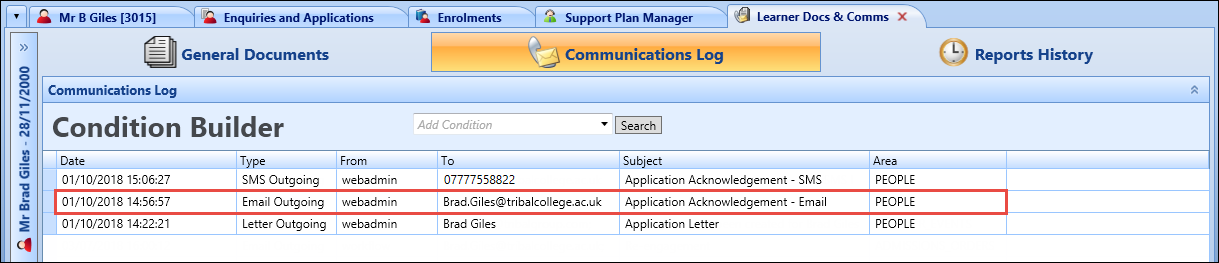
When the required record has been selected, you can create email correspondence in the Correspondence Wizard screens:
 Select Correspondence Required screen
The Select Correspondence Required screen of the Correspondence Wizard is the initial screen displayed.
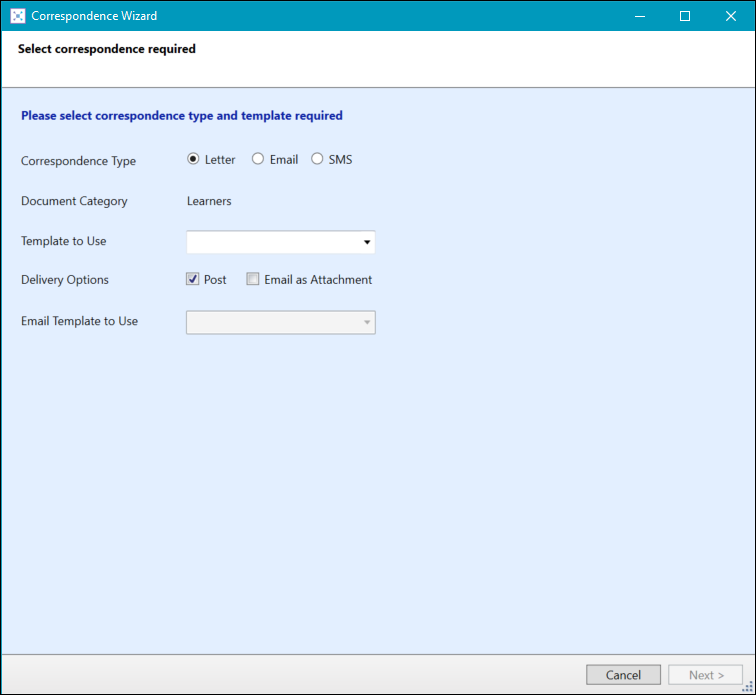
The fields on the Select Correspondence Required screen of the Correspondence Wizard are described in the following table.
| This field | Holds this information... |
|---|---|
| Correspondence Type |
The type of correspondence. Select Email from the drop-down list.
|
| Document Category |
The document category (read-only). Important.The Document Category field defaults to the relevant category depending on which screen you access the Correspondence Wizard from.
|
| Template to Use |
The template to use for the correspondence. Select from the drop-down list. Important.Templates are set up and managed in Template Management (accessed from the System ribbon).
|
| Delivery Options | This field is only applicable for a correspondence type of Letter. |
| Email Template to Use |
The email template to use for the correspondence. Select from the drop-down list. Important.This field is only applicable for a correspondence type of Email.
|
| Email Attachments |
If a correspondence type of Email is selected, you can add email attachments. Select the Add Attachment button to display the Open window, where you can navigate to and select the required file to attach to the email. Important.If required, you can remove an email attachment by selecting an attachment, and then selecting the Remove Attachment button.
|
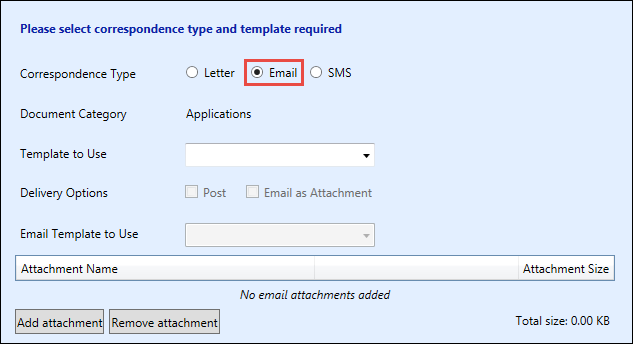
Select the Next button to display the Select the Recipients screen of the Correspondence Wizard.
Select the Recipients screen
The Select the Recipients screen of the Correspondence Wizard is used for selecting the recipients of the correspondence.
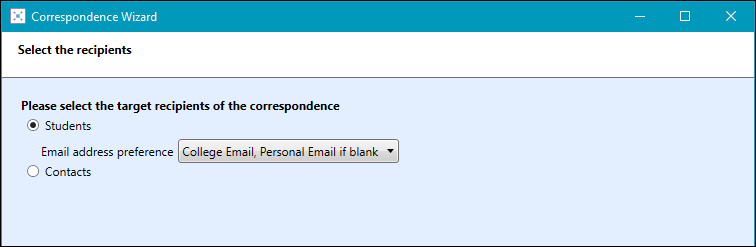
Select the Students option to send the correspondence to the selected learner's email address.
Select one of the following target recipient options for the correspondence:
-
Students - sends the correspondence to the selected learner's email address. Select from the following in the Email address preference drop-down:
-
College Email only - only attempts to send the email to the learner's college email address
-
College Email, Personal Email if blank - attempts to send the email to the learner's college email address, but if it is not defined, attempts to send it to the learner's personal email address
-
Personal Email only - only attempts to send the email to the learner's personal email address
-
Personal Email, College Email if blank - attempts to send the email to the learner's personal email address, but if it is not defined, attempts to send it to the learner's college email address
Important.The default preference can be defined using the Default email address preference institution setting (on the General (Cross-System) screen). -
-
Contacts - select which contacts recorded on the Contacts tab for the learner to send the correspondence to
Important.This is set to Include Residential Guardian by default.
Select the Next button to display the Review the Recipients screen of the Correspondence Wizard.
Review the Recipients screen
The Review the Recipients screen of the Correspondence Wizard shows the list of recipients of the correspondence and whether there are any validation exceptions and warnings for each recipient so you can manage them.
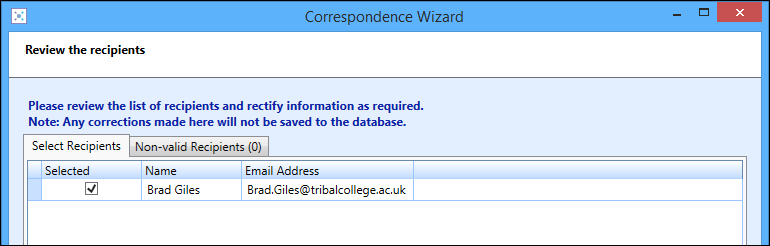
Check the information for the recipients listed is correct and amend the details for the relevant correspondence (that is: email address) if required.
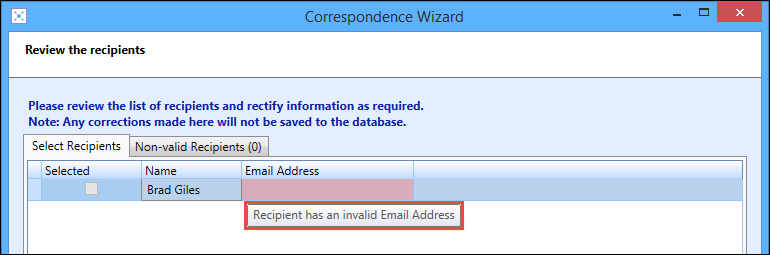
Errors are displayed for recipients without the relevant correspondence and are highlighted in red. Hovering over the cell with the cursor will display the reason for the error.
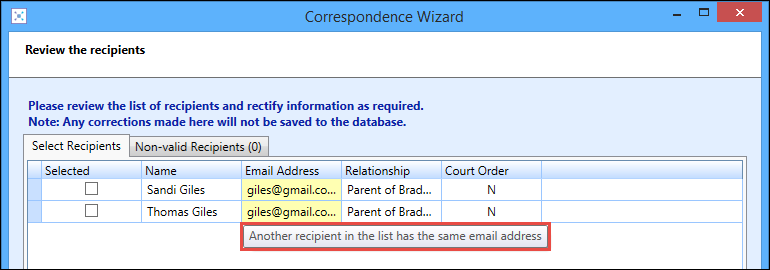
Warnings are displayed for duplicates of the relevant correspondence and are highlighted in yellow. Hovering over the cell with the cursor will display the reason for the warning.
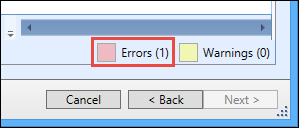
The number of errors and warnings are displayed in brackets at the bottom of the screen.
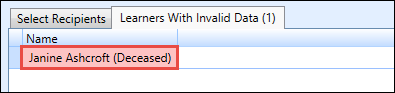
The Non-Valid Recipients/Learners With Invalid Data tabs display deceased learners, which means that deceased learners will not be listed on the Select Recipients tab and correspondence cannot be generated.
Select the Next button to display the Review Correspondence screen of the Correspondence Wizard.
Review Correspondence screen
The Review Correspondence screen of the Correspondence Wizard shows a preview of the correspondence to be sent.
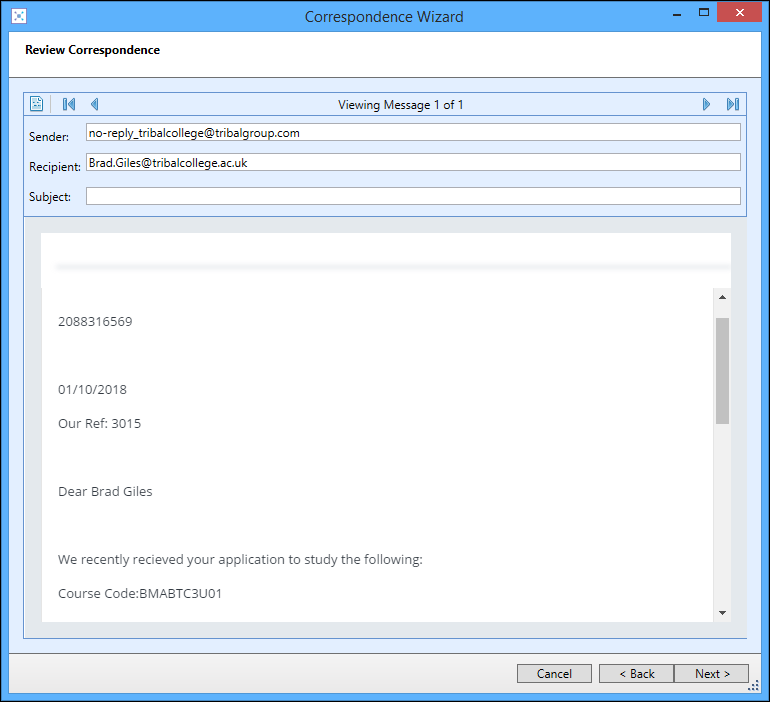
If more than one learner (or staff member in data miner) when creating bulk correspondence is selected on the previous screen, then an email will be created for each recipient. These can be edited individually and viewed by selecting the Next , Previous , First and Last buttons at the top of the window.

From this screen you can edit the correspondence you have selected if the Content can be edited option is selected for the correspondence template in Template Management.
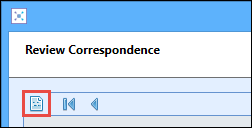
When you have edited the correspondence, you can preview it by selecting the Preview button at the top of the screen. This opens a new window enabling you to view the correspondence as a PDF in a browser window. From this screen you can print the email or save the email to a folder on your computer.
Select the Next button to display the Process Correspondence screen of the Correspondence Wizard.
Process Correspondence screen
The Process Correspondence screen of the Correspondence Wizard shows the number of correspondence that will be sent and the process options for the email correspondence type.
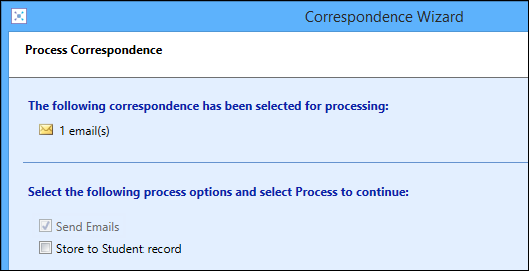
The following process options are available:
- Send Emails - indicates emails are sent for this correspondence (read-only)
-
Store to Student Record - select whether to save the current email to the learner's Communications Log
Important.The Store to Student Record option is selected and made read-only if the Store a copy in student's record option is selected for the correspondence template in Template Management.
Select the Process button to process the correspondence. This will then display the Correspondence Successfully Processed screen of the Correspondence Wizard.
Correspondence Successfully Processed screen
The Correspondence Successfully Processed screen of the Correspondence Wizard shows the number of correspondence that was generated and any exceptions found.
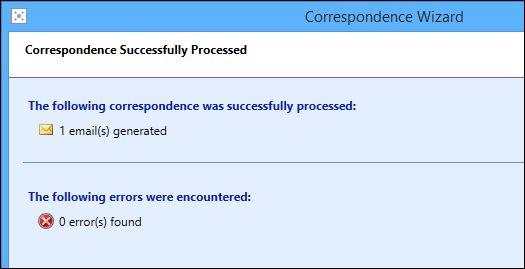
Select the Finish button to close the Correspondence Wizard and return to the learner's record.